Feedback
1. Installation Process
Published Date: 28-09-2026
Read Time:
Log in to your Salesforce instance using Admin credentials.
There are a few prerequisites that must be completed before installing the Sinergify package.
1.1 Pre-Requisites
A. Enable Ideas
-
Login to the Salesforce instance.
-
Switch to Classic Experience and click on Setup.
-
In the Search box, enter Idea Settings.
-
Click Edit.
-
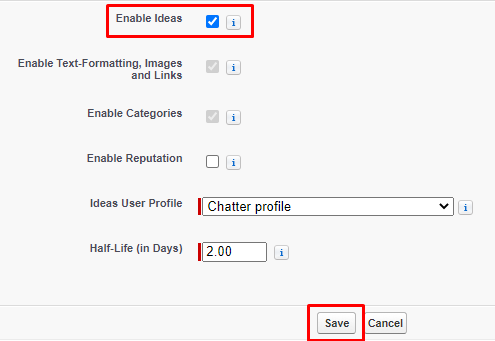
Select Enable Ideas.
-
Click Save.
B. Enable Incident Management
-
Go to Setup.
-
Search for Customer Service Incident Management.
-
Enable the toggle button.

Note: Sinergify is compatible with Salesforce Incident Management. It is mandatory to enable Incident Management during the installation. This setting can be disabled after the package installation is complete.
C. Enable Email-to-Case
-
Go to Setup.
-
Search for Email-to-Case.
-
Select Email‑to‑Case from the Service Setup results.
-
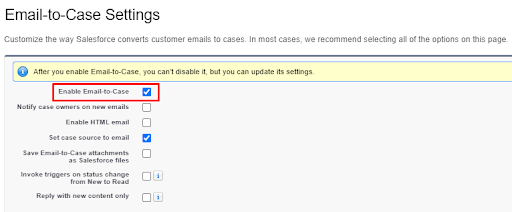
On the new screen, select Enable Email‑to‑Case.
1.2 Package Installation from AppExchange
-
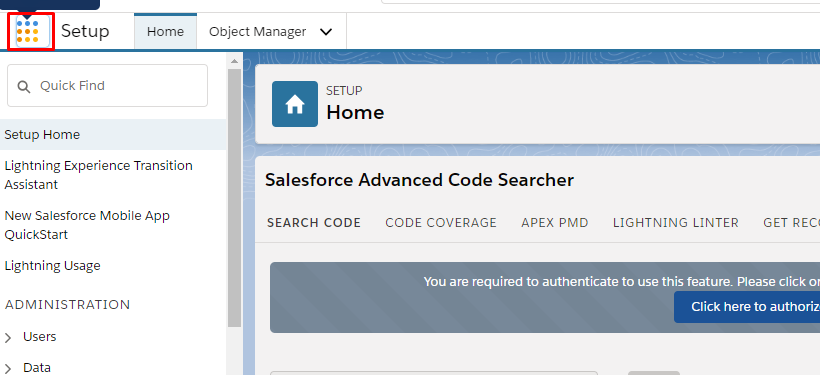
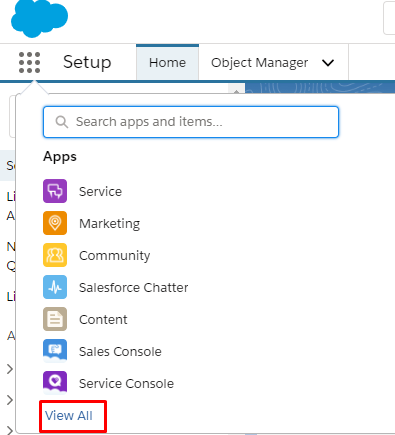
Click the App Launcher icon above the Quick Find search box.
-
Click View All.
-
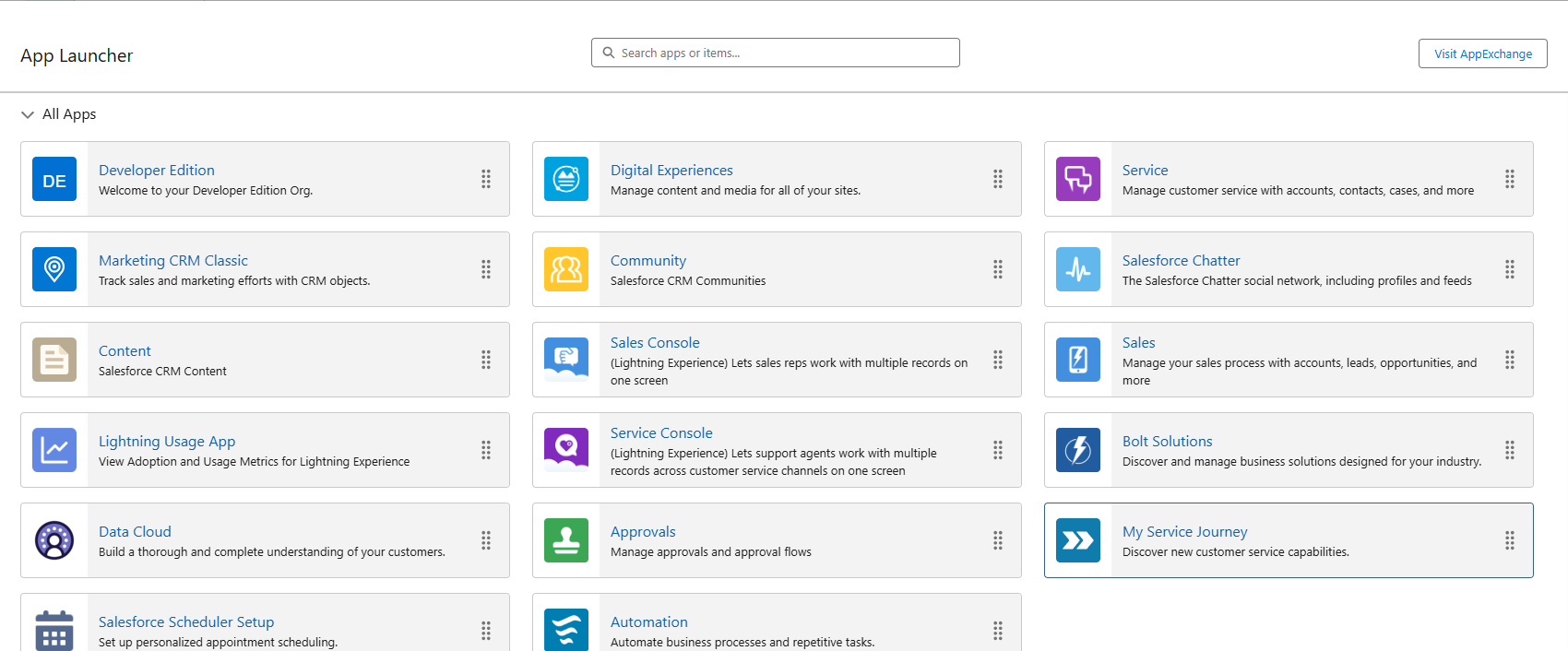
Click the Visit AppExchange button from the extreme right.
-
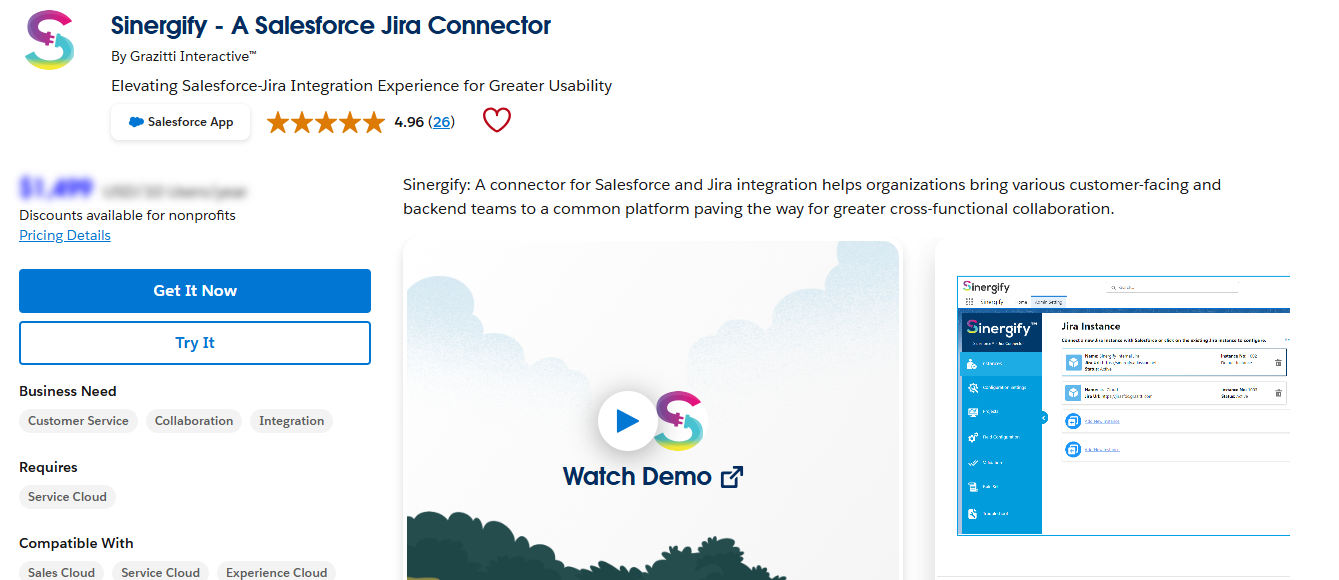
Search for Sinergify in AppExchange. Click Get It Now.
-
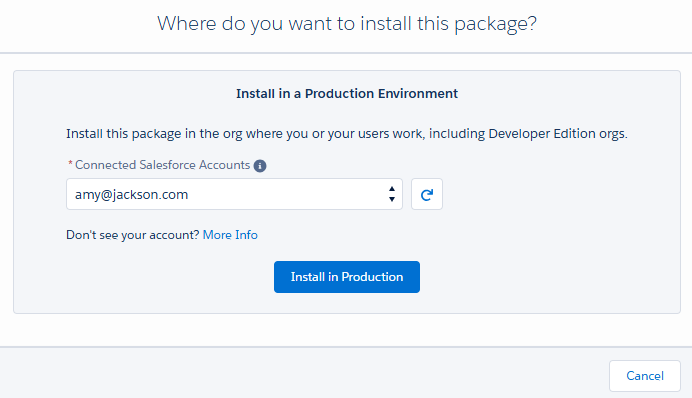
Select the Salesforce environment where you want to install the package.
-
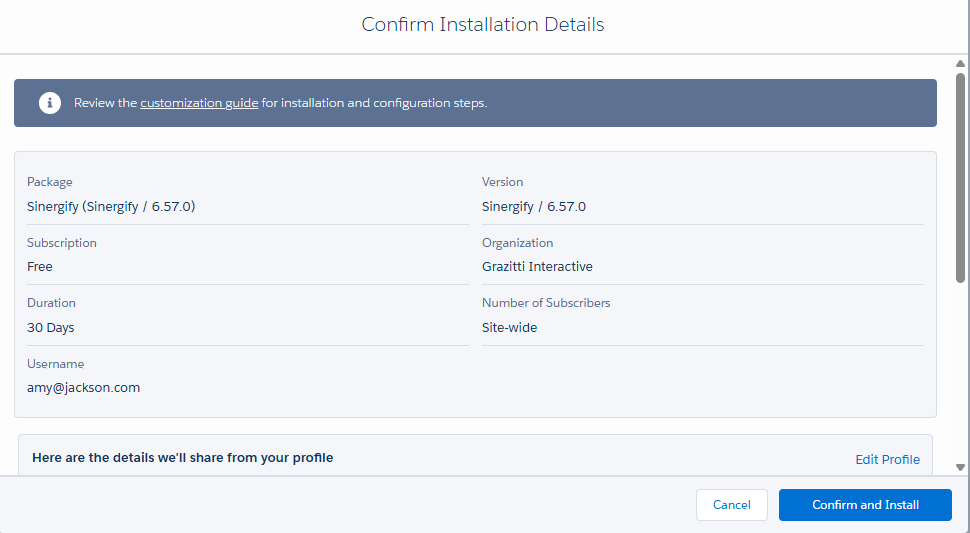
Click Confirm and Install.
-
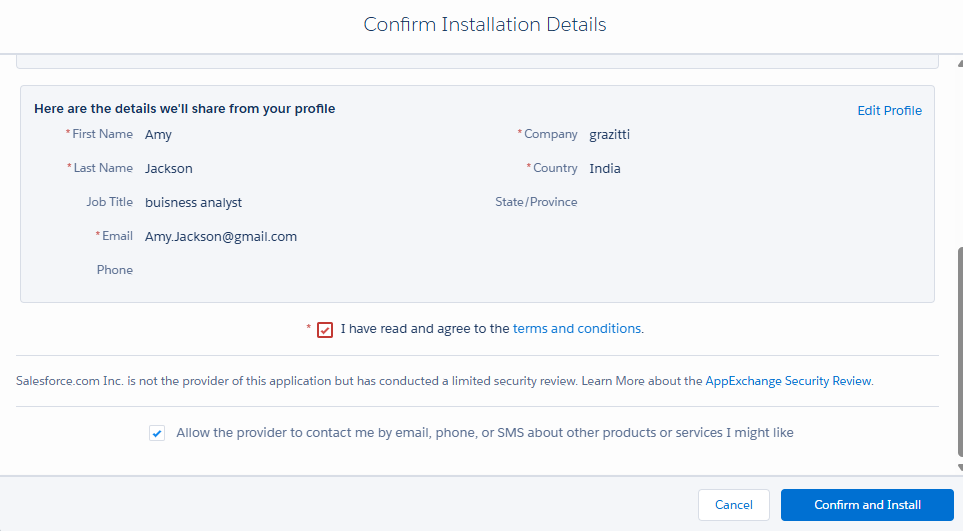
Review the terms and conditions, select I have read and agree to the terms and conditions, and click Confirm and Install.
-
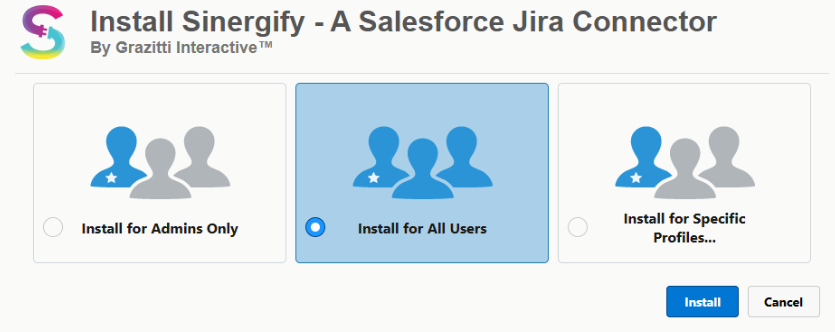
Specify the users for whom Sinergify should be installed.
-
Click Install.
1.3 Post-Installation
-
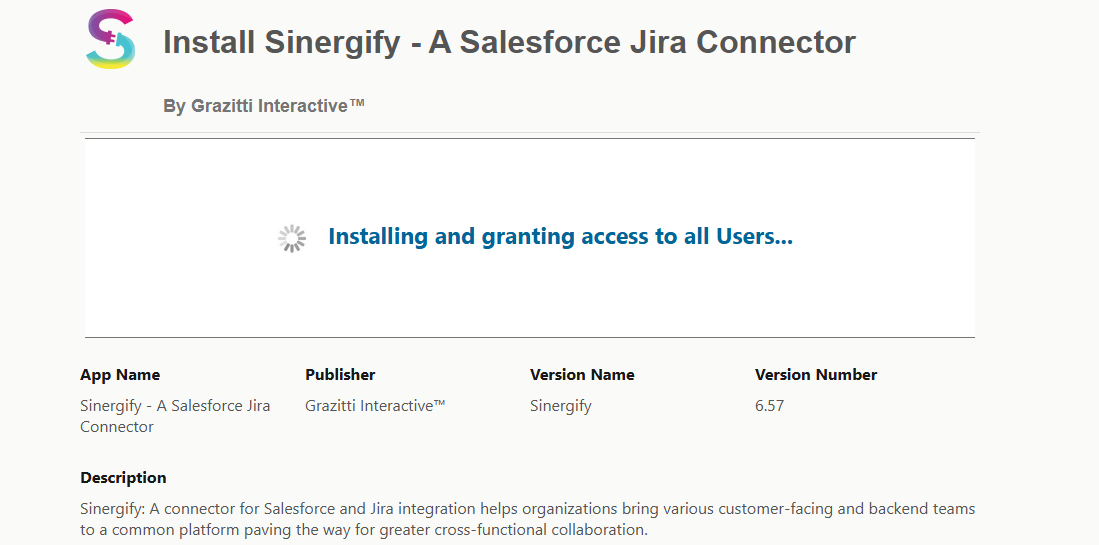
The installation may take a few minutes to complete.
-
Users will receive an email notification once the installation is successful.
-
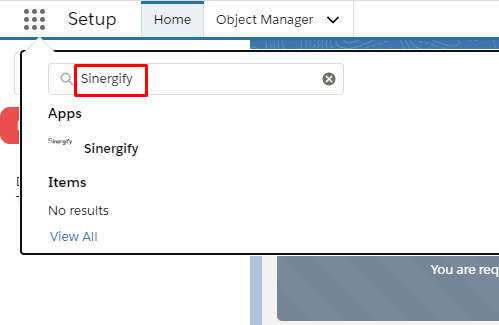
After successful installation, Sinergify will be visible in the App Launcher.