Feedback
Rich Text Support
Published Date: 28-09-2026
Read Time:
1. Introduction
The Rich Text feature in Sinergify enables formatted content to be created, displayed, and synced between Salesforce and Jira. This applies across all key actions while viewing, creating, and syncing records. Users can leverage the Salesforce standard Rich Text Editor to write structured, formatted content, ensuring a familiar and seamless experience. All formatting is fully preserved when content syncs across platforms.
2. Feature Highlights
1) Rich Text in Jira Fields:
Support Rich Text Area fields in Salesforce. Syncs formatting bold, italics, lists, hyperlinks, tables, and images across Jira fields like Description, Environment, and custom fields.
2) Rich Text in Comments
Support rich text formatting across all Salesforce comment types, including Case Comments, Feed Posts, and Feed Comments, via the Salesforce standard Rich Text Editor.
3) User Tagging (@Mention)
Tag team members via @mentions in Jira comments. Tagged users are notified on their respective platforms.
3. Rich Text in Jira Fields
Overview
This feature syncs rich text content from Salesforce to the corresponding Jira fields with all formatting preserved. The Rich Text Editor is available exclusively for Rich Text Area fields
Supported Formatting
The Rich Text Editor supports a wide range of formatting options that are preserved when content is synchronized between Salesforce and Jira.
|
Formatting Type |
Supported |
Notes |
|---|---|---|
|
Headings (H1-H6) |
Yes |
Supported during synchronization. Jira may not render headings correctly when they are nested inside bullet or numbered lists due to Jira's native rendering behavior. |
|
Bold |
Yes |
Preserved across Salesforce and Jira. |
|
Italic |
Yes |
Preserved across Salesforce and Jira. |
|
Underline |
Yes |
Preserved across Salesforce and Jira. |
|
Strikethrough |
Yes |
Preserved across Salesforce and Jira. |
|
Block Quotes |
Yes |
Supported and synchronized correctly. |
|
Inline Code |
Yes |
Supported and synchronized correctly. |
|
Code Blocks |
Yes |
Supported and rendered as Jira code blocks. |
|
Subscript |
Yes |
Supported and synchronized correctly. |
|
Superscript |
Yes |
Supported and synchronized correctly. |
|
Bullet Lists |
Yes |
Supported and synchronized correctly. |
|
Numbered Lists |
Yes |
Supported and synchronized correctly. |
|
Paragraphs |
Yes |
Supported and synchronized correctly. |
|
Hyperlinks |
Yes |
Displayed as clickable links in both Salesforce and Jira. |
|
Text Colors |
Yes |
Supported during synchronization. |
|
Tables |
Yes |
Table structure and content are preserved. |
|
Images (PNG, GIF, JPEG up to 1 MB) |
Yes |
Images are synchronized and displayed correctly, as per standard SF platform compatibility and limits. |
|
User Tagging (@Mention) |
Yes |
Supported in rich text comments. Tagged users receive notifications, and mentions appear as clickable links. |
|
Action Items |
No |
Currently not supported. |
|
Native Emojis |
No |
Native emoji rendering is not supported. Users can use Jira emoji shortcuts such as :), :(, and :D, which Jira automatically converts into emojis. |
Configuration Steps
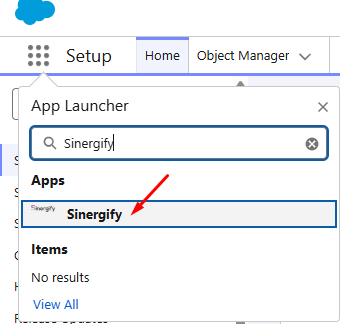
Step 1: Open Sinergify from App Launcher
From the Salesforce App Launcher, search for a nd open the Sinergify app.
Step 2: Configure Field Mapping
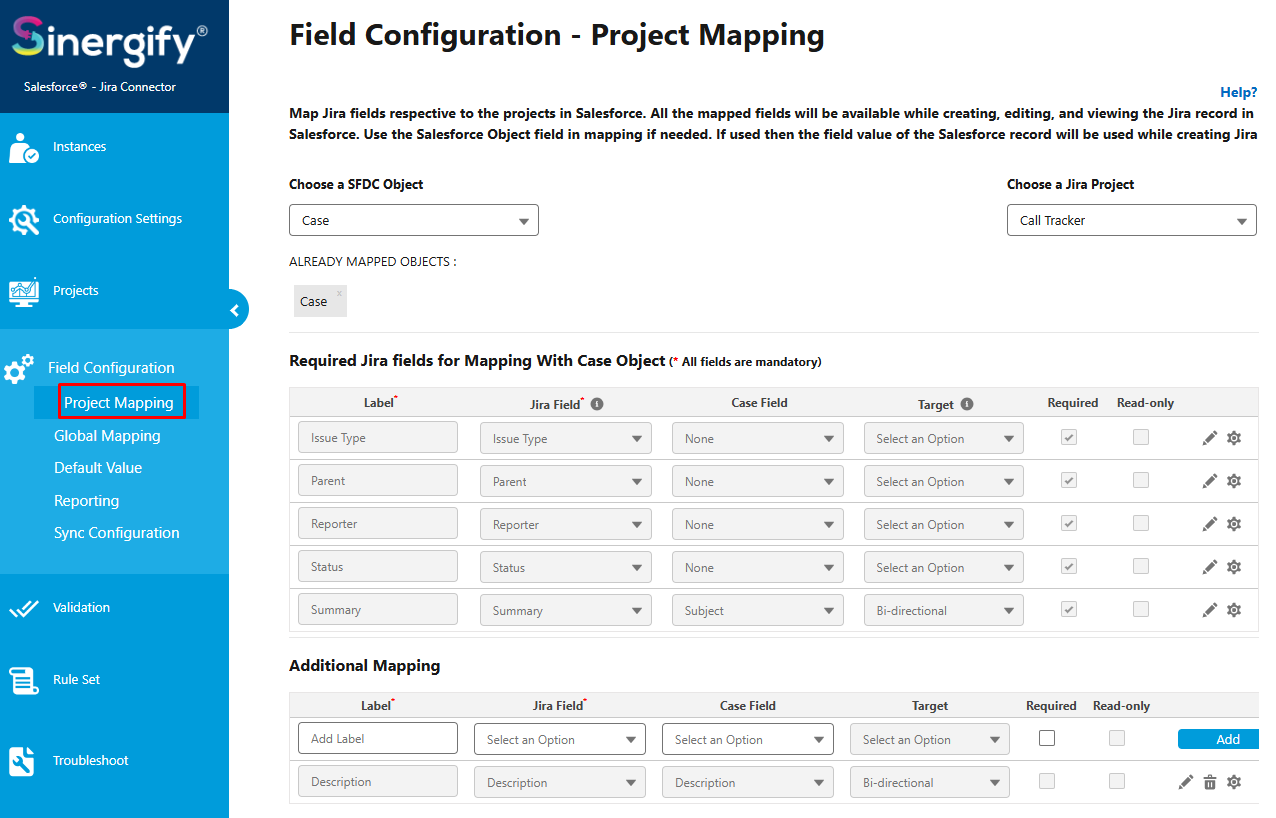
Navigate to Sinergify Admin Settings, Open Field Configuration → Project Mapping.
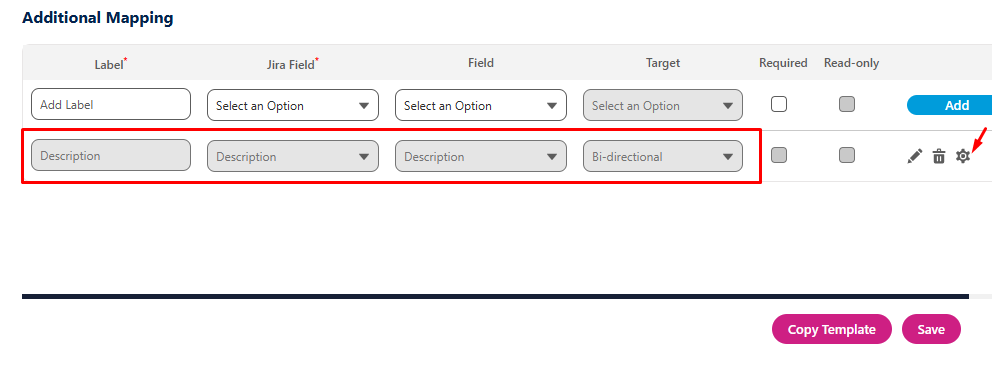
Locate the Jira field where rich text needs to be enabled (for example, Description). Click the Settings (⚙️) icon next to the field.
Step 3: Enable Rich Text for Issue Types
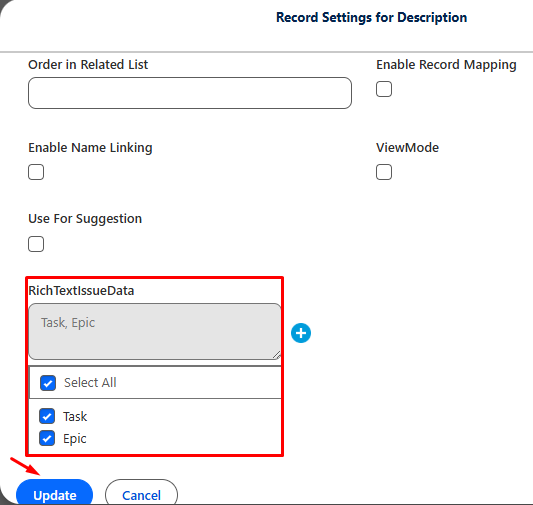
In the Record Settings window, locate the RichTextIssueData section.
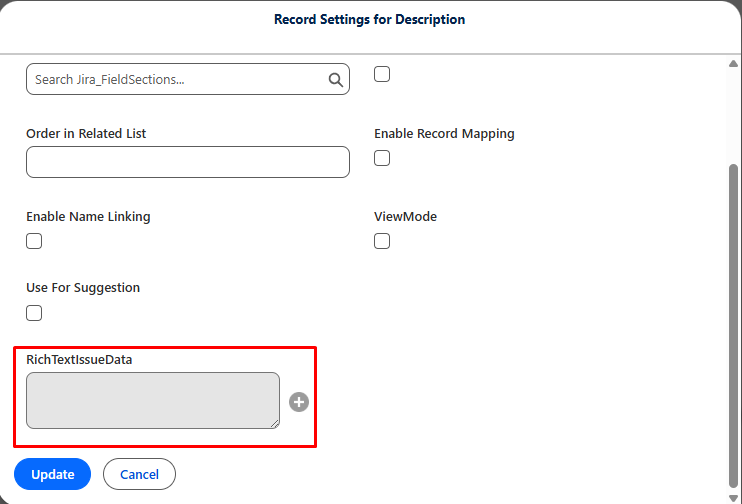
Select the Issue Types for which rich text should be enabled. Click Update to save the configuration.
Step 4: Test — Create a Jira Issue with Rich Text
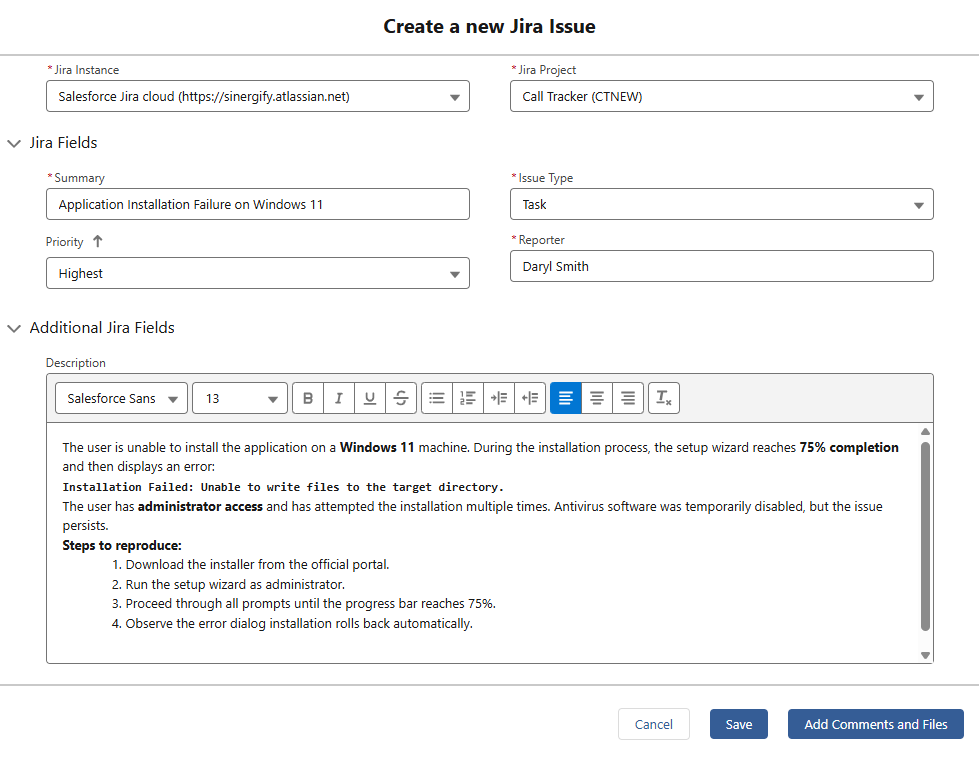
Navigate to the Create Jira Issue screen in Salesforce. Select the required Jira Instance, Project, and Issue Type. Scroll to Additional Jira Fields. Locate the configured field (for example, Description). Enter formatted content and create the Issue. Verify it appears correctly in Jira.
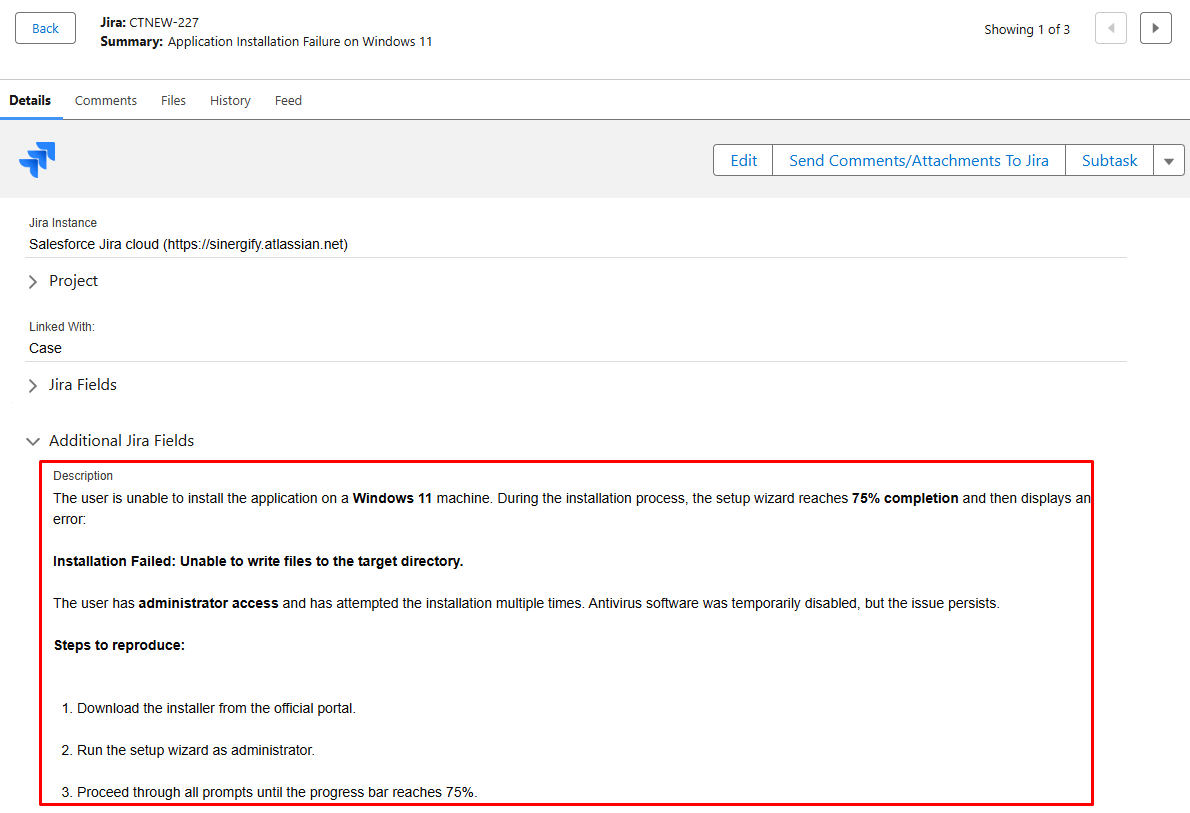
Salesforce Record View Inside the Jira Issue
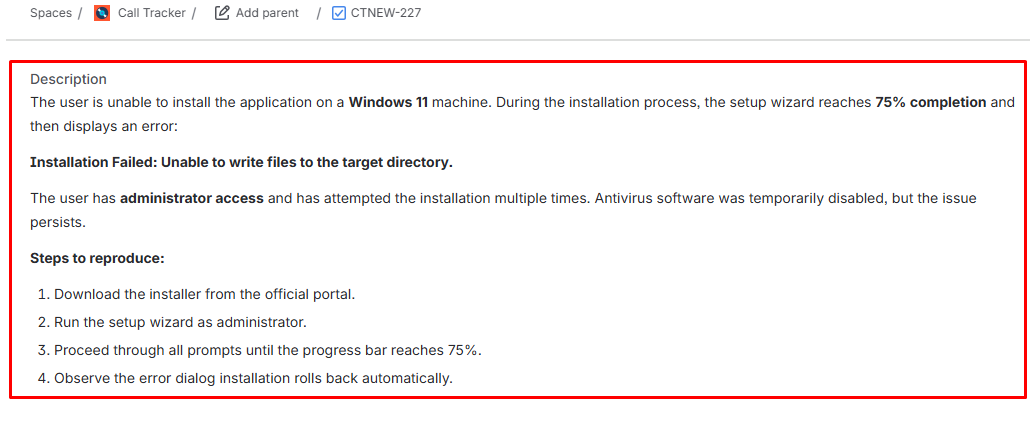
Jira Side View
4. Rich Text in Case Comments
Overview
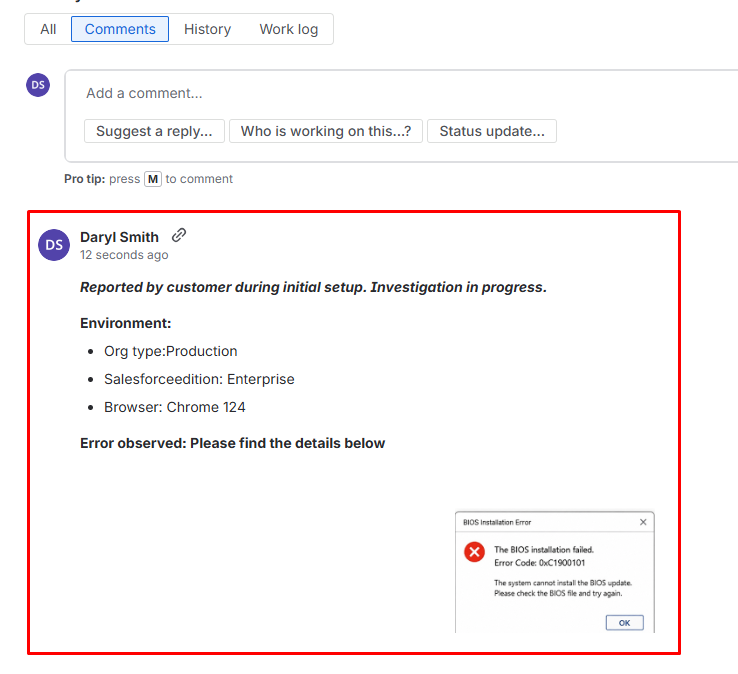
Support agents can write formatted comments on Salesforce Cases using the Rich Text Editor. These comments sync to the linked Jira Issue with all formatting preserved. When engineers reply in Jira, their responses sync back to Salesforce — fully formatted — so agents have everything they need without switching platforms.
Configuration Steps
Step 1: Enable Rich Text for Case Comments in Salesforce
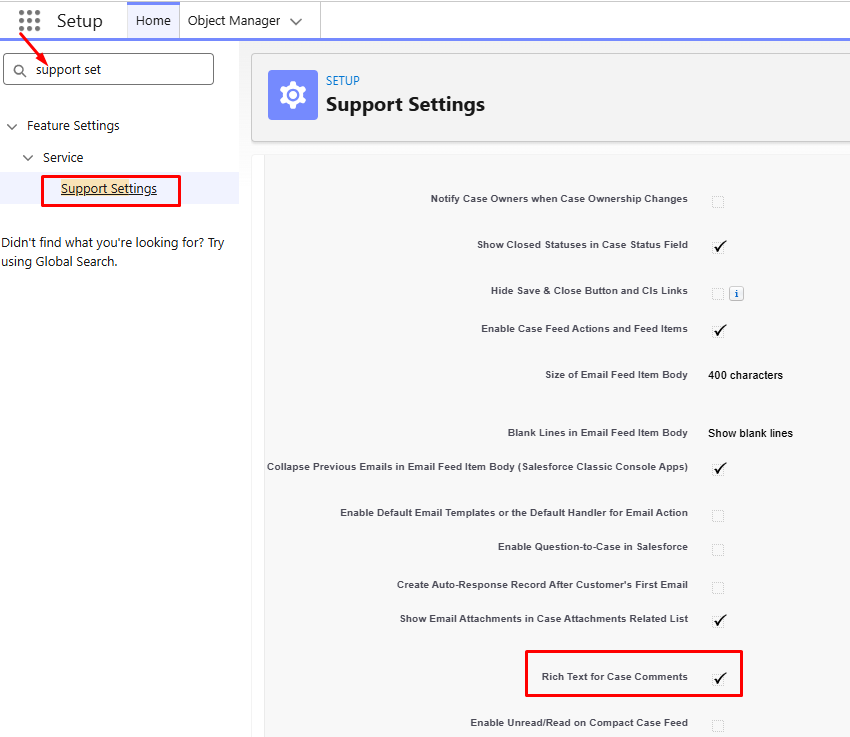
Go to Setup in Salesforce. Navigate to Support Settings. Enable "Enable Rich Text for Case Comments."
Important: Once enabled in Salesforce, this setting cannot be disabled.
Step 2: Enable Rich Text Sync in Sinergify
-
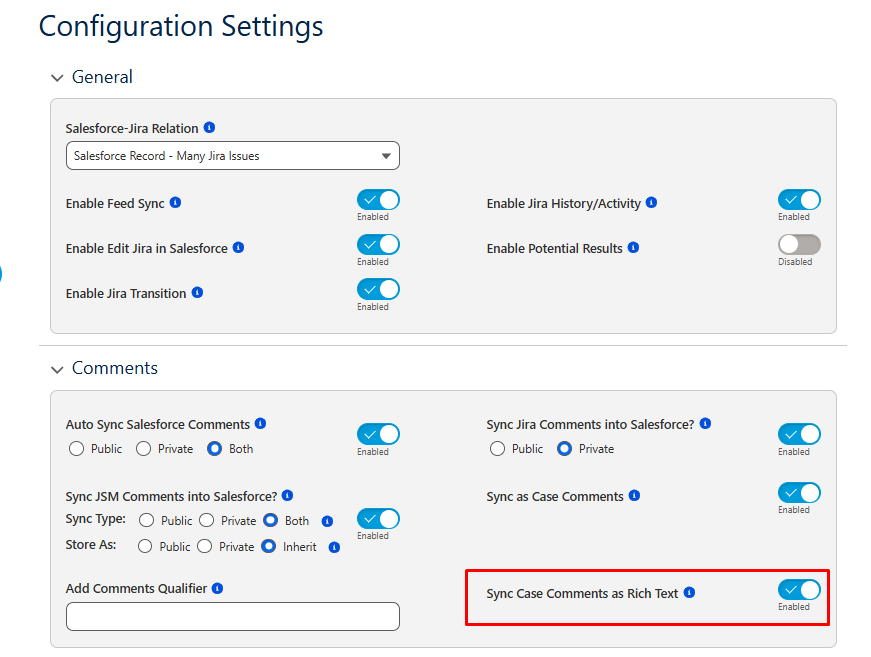
Open Sinergify from the App Launcher. Go to Sinergify Admin Settings → Configuration Settings. Scroll to the Comments section.
-
Enable "Sync Case Comments as Rich Text."
Step 3: Test — Add a Case Comment
-
Open a Salesforce Case (Related tab) that is linked to a Jira Issue.
-
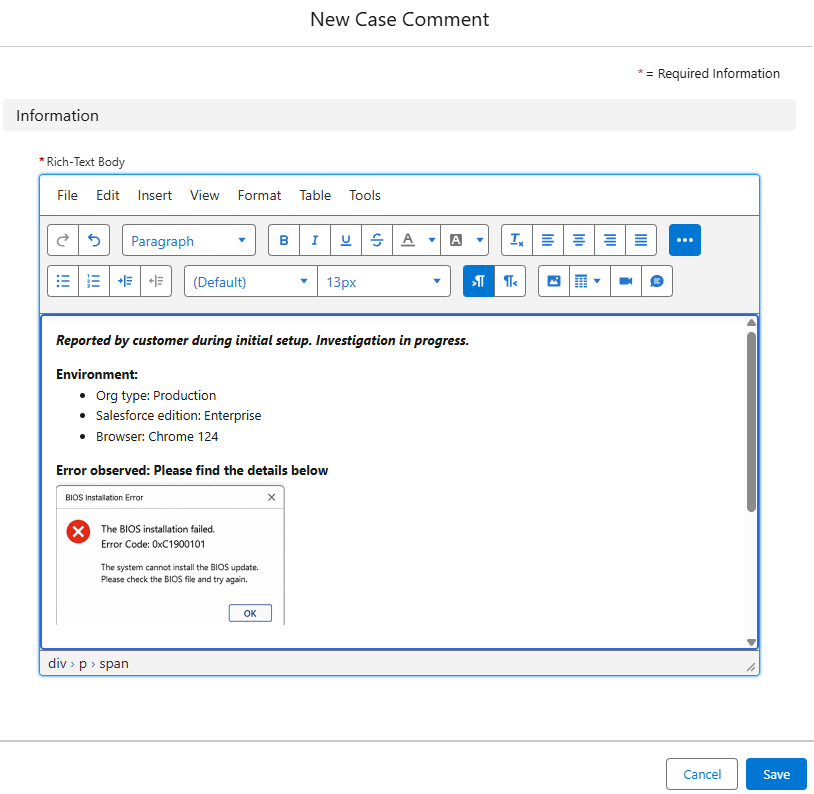
Add a Case Comment using formatting such as bold text, bullet points, numbered lists, and an inline image.
-
Save the comment and verify it appears in the linked Jira Issue with the same formatting.
5. User Tagging (@Mention)
Overview
Users can tag colleagues using @mentions in Jira issue comments. The tagged person receives a notification, making it easier to collaborate and bring the right people into the discussion.
Configuration Steps
Step 1: Tag a colleague
Open the Jira Issue Comments section. Type @ followed by the colleague's name in the comment. A dropdown appears with matching users. Select the required user from the list.
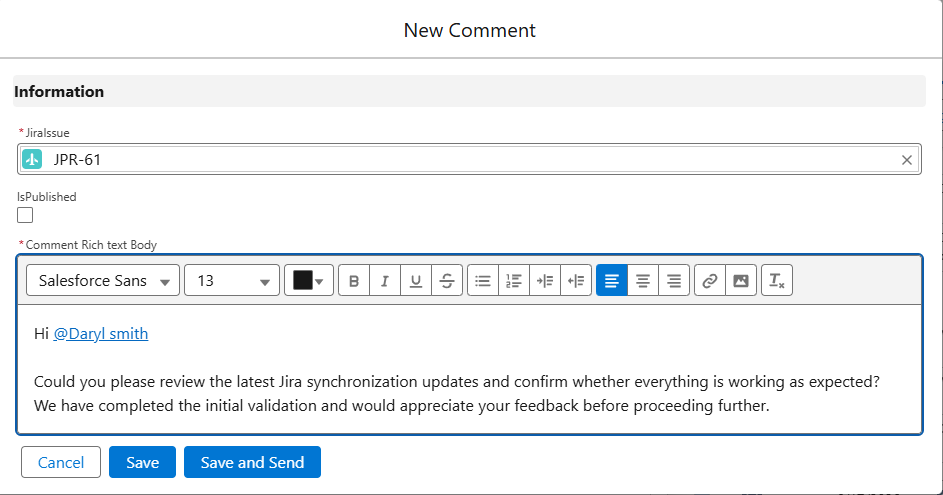
Step 2: Save and notify
Click Save or Save and Send to publish the comment. The tagged user receives a notification.
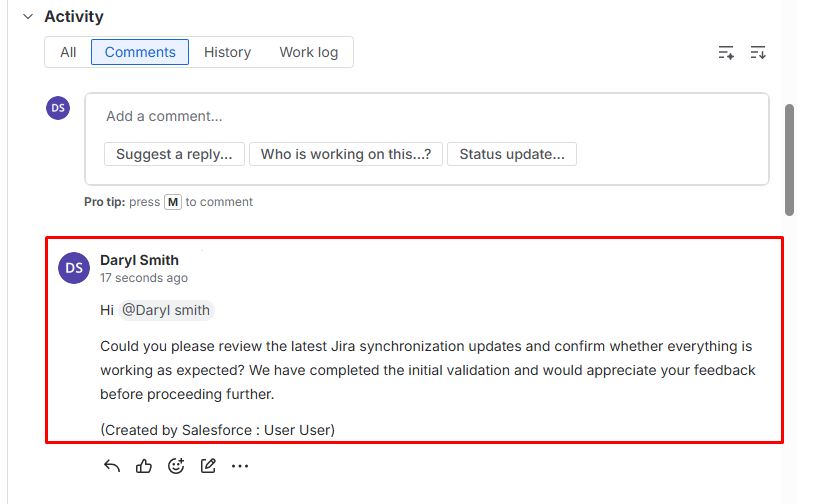
Step 3: Verify the mention
The example below shows a user mentioning a colleague using @Daryl Smith in a Jira issue comment before saving and sending the comment.
6. Future Release
|
Feature |
What to Expect |
|---|---|
|
SF Reports Compatibility |
Rich Text fields will render cleanly inside Salesforce Reports — no raw HTML, no stripped formatting. |
|
Default Values for Rich Text Fields |
Administrators will be able to set a pre-formatted default value that auto-populates when a new record is created. |
|
Email-to-Case Body Formatting |
Rich text content in inbound emails converted to Cases will be preserved and synced to Jira with formatting intact. |
|
Autocreation of Jira |
Rich Text synchronization during Jira issue creation will be enhanced to support formatted content without issues caused by Rich Text formatting tags, ensuring the content is synchronized successfully during issue creation. |