Feedback
Rich Text Comment Body — Page Layout Update
Overview
This document explains how to update Salesforce page layouts to display the Comment Rich Text Body field after upgrading to the latest version.
Note: This update is only required if the Comment Rich Text Body field is not visible after the upgrade. If the field is already displayed correctly in your Salesforce org, you can skip these steps.
Previous Comment Display
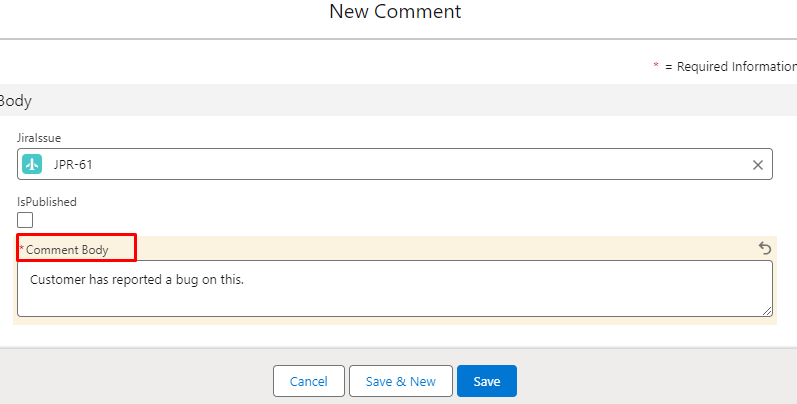
New Comment Display
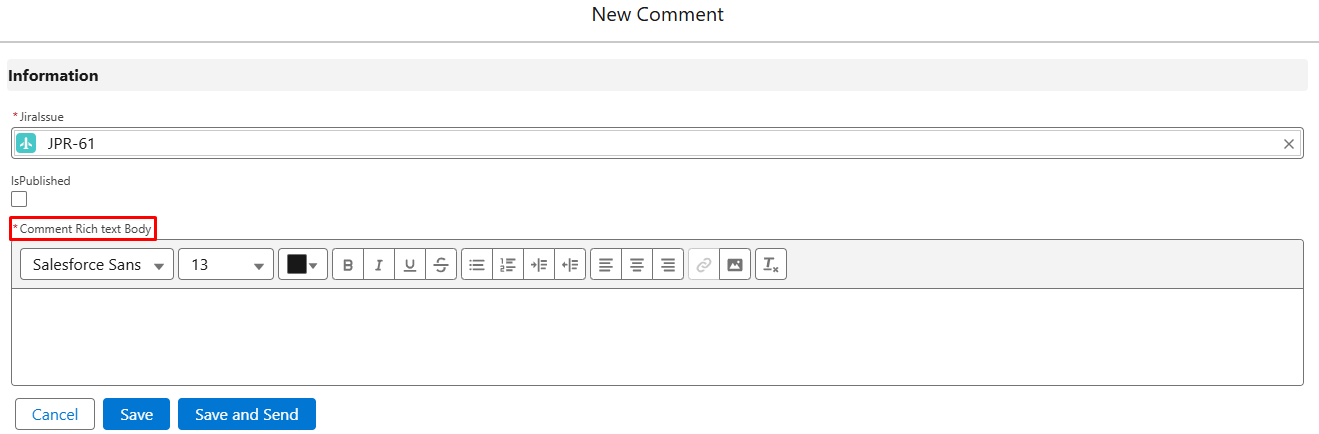
1.1 Update the Jira Issue Detail page
-
Go to Setup → Object Manager → Jira Issue.

-
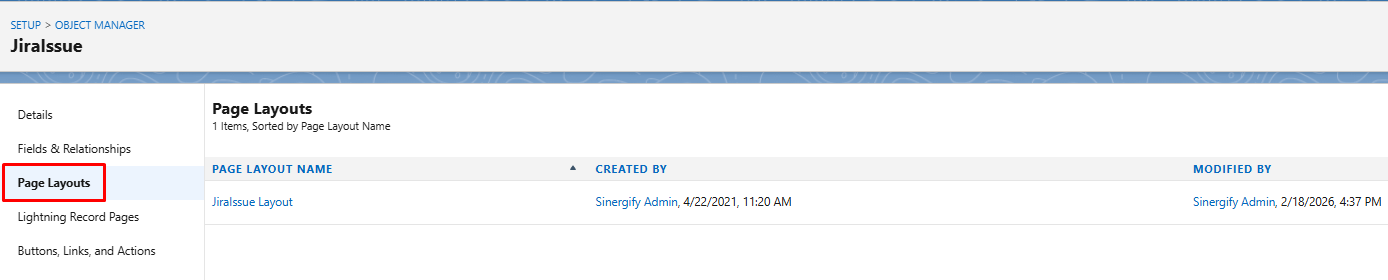
Open Page Layouts and select JiraIssue Layout.
-
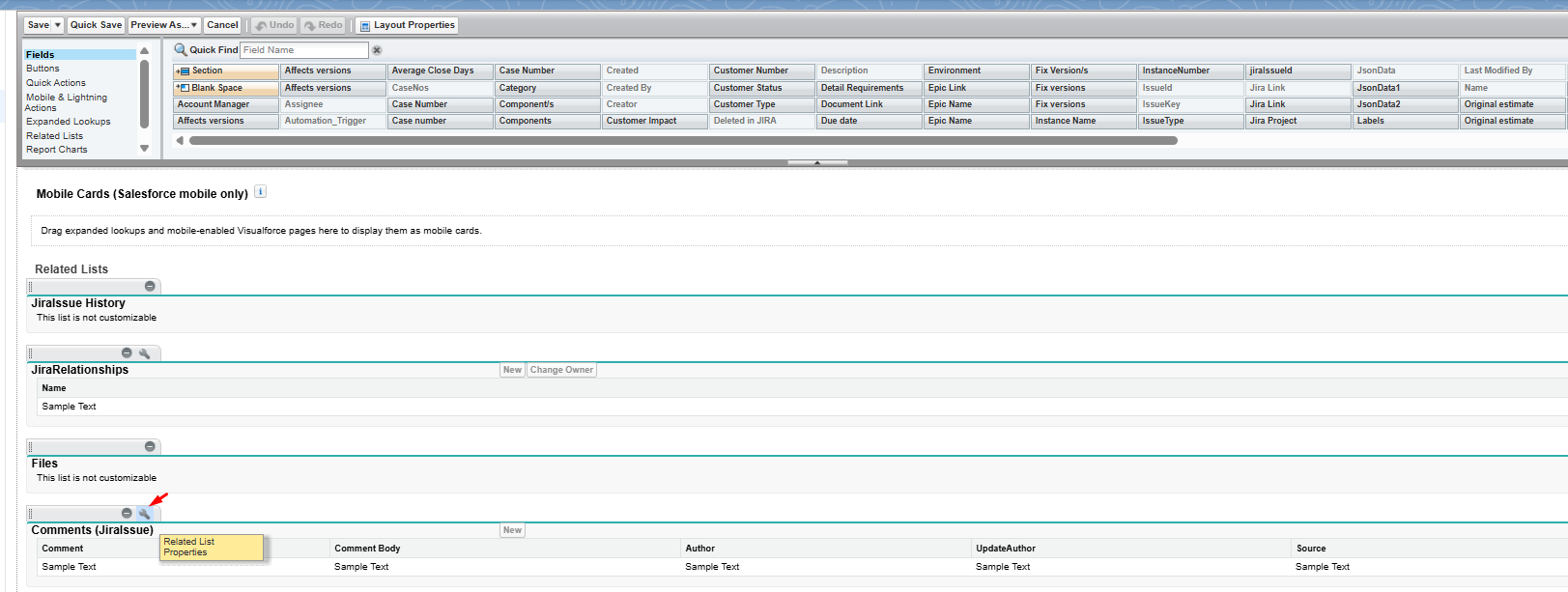
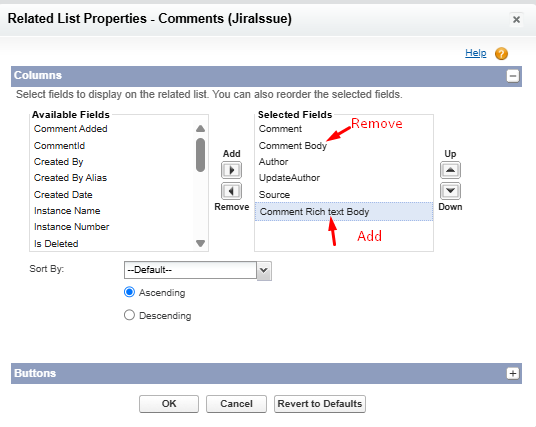
Scroll down to the Comments related list. Click the Properties (wrench) icon for the related list.
-
Add the Comment Rich Text Body field to the related list. Remove the existing Comment Body field.
-
Save the layout.
After saving, refresh the page. If changes are not immediately visible, log out of Salesforce and log back in.
1.2 Update the New/Edit Jira Comment Page
-
Go to Setup → Object Manager → Comments.

-
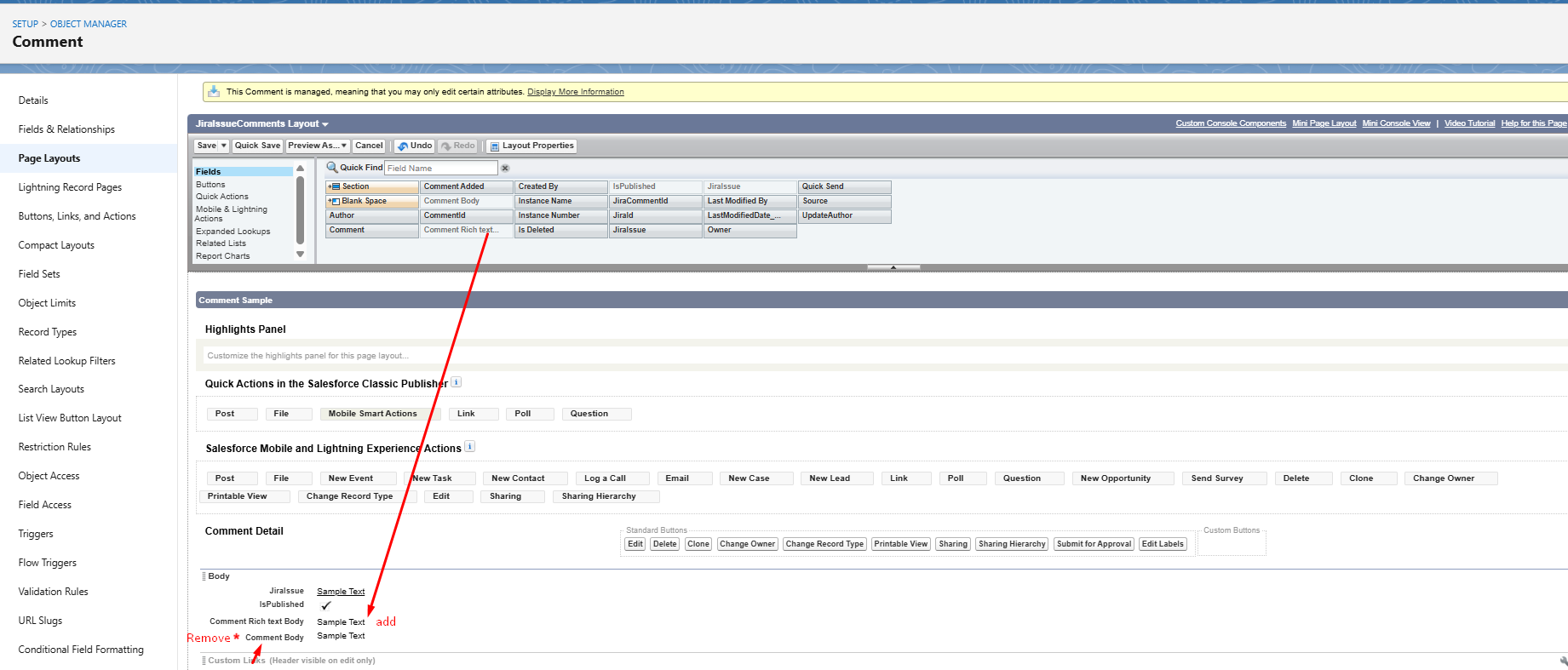
Open Page Layouts and select JiraIssueComments Layout.

-
In the Body section of the layout: Add the Comment Rich Text Body field. Remove the existing Comment Body field.
-
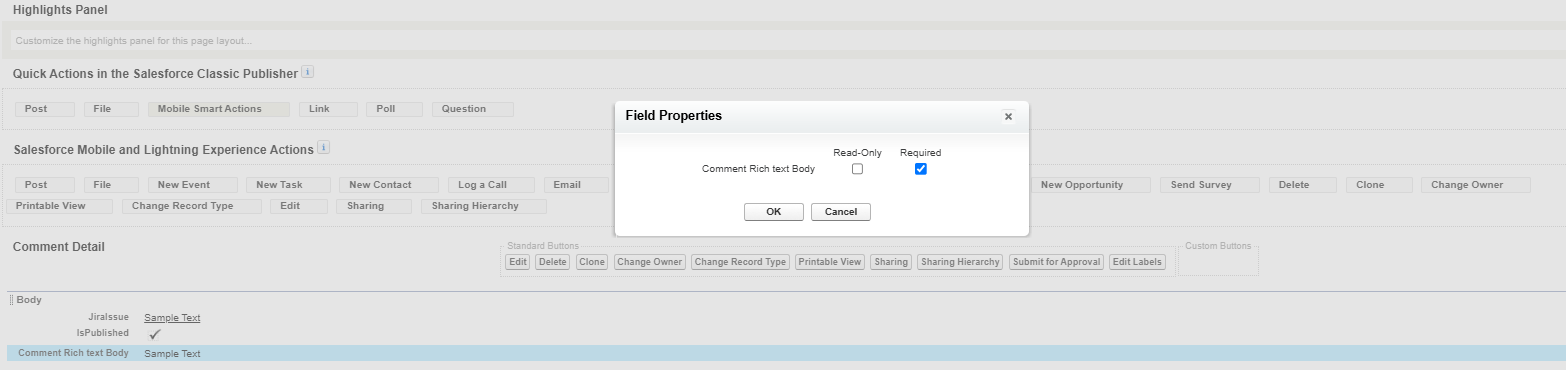
Open the field properties for Comment Rich Text Body and mark the field as Required.
-
Save the layout.