Feedback
Reporting
Published Date: 28-09-2026
Read Time:
Reporting allows the users to use the Jira fields mapped through Project Mapping/Global Mapping to create reports in Salesforce.
To make a mapped field available in the report, follow the given steps.
Step 1: Click Reporting from Fields Configuration sub-tab.
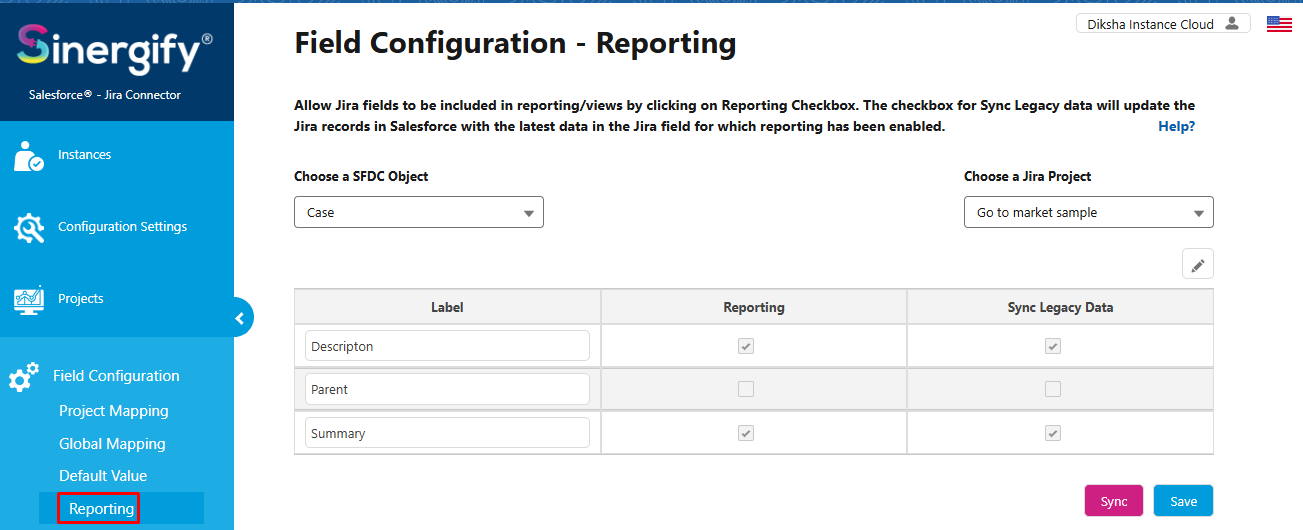
Step 2: Select an appropriate Jira project for which you want to enable reporting.
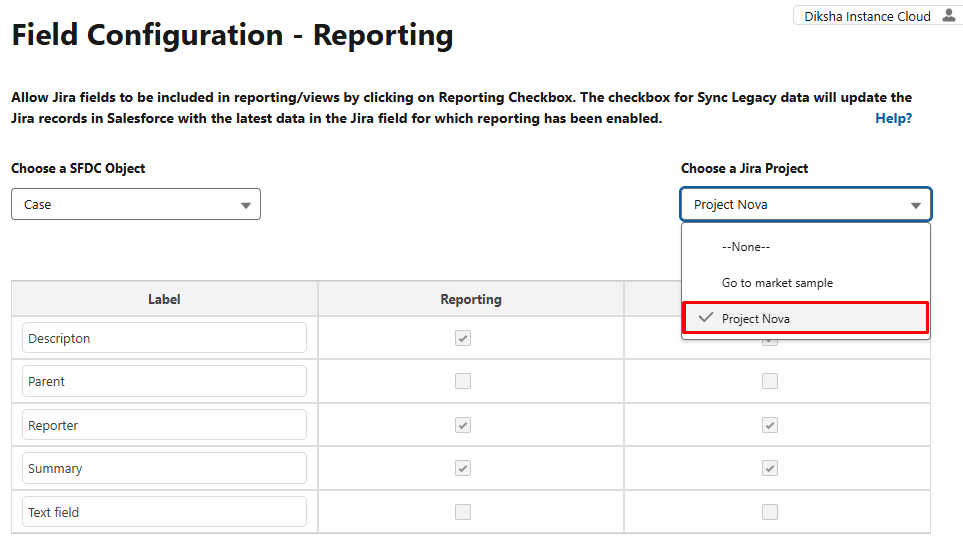
Step 3: You will see some standard fields on the page for which reporting is already enabled and these fields will be visible in the report for use.
To enable reporting for the newly mapped field, press edit and check Reporting and Sync Legacy Data.
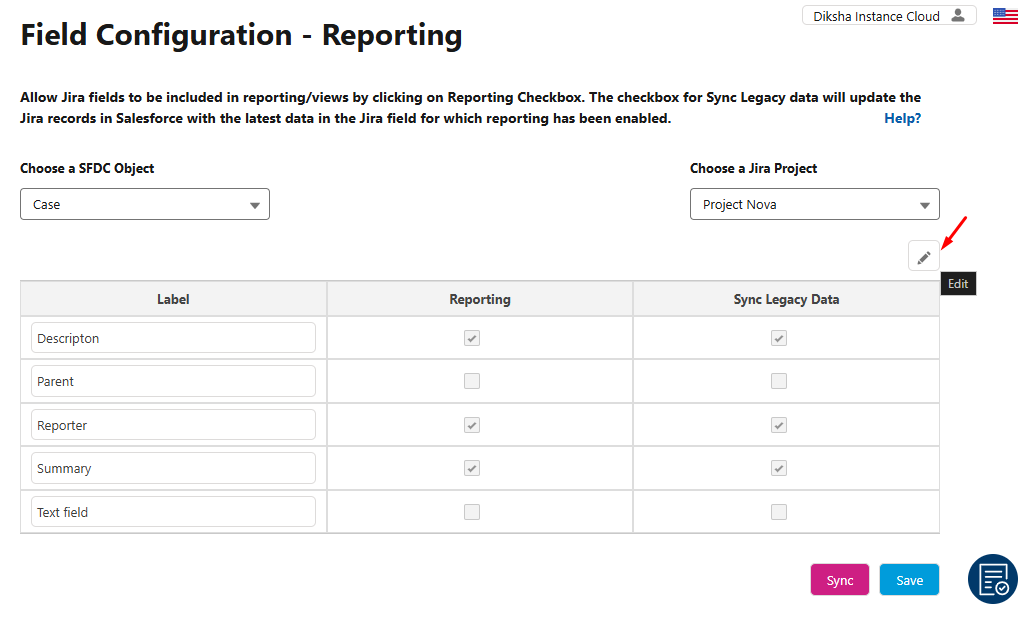
Note: If a user will not check Sync Legacy Data and have only checked Reporting, then the legacy data of the Jira field will not sync automatically.
Step 4: When the user clicks Save, a confirmation popup appears asking whether to update legacy Jira records; select 'Yes' to schedule the BatchToAutoUpdateJira job and synchronize historical data, or select 'No' to save the configuration without updating legacy records.
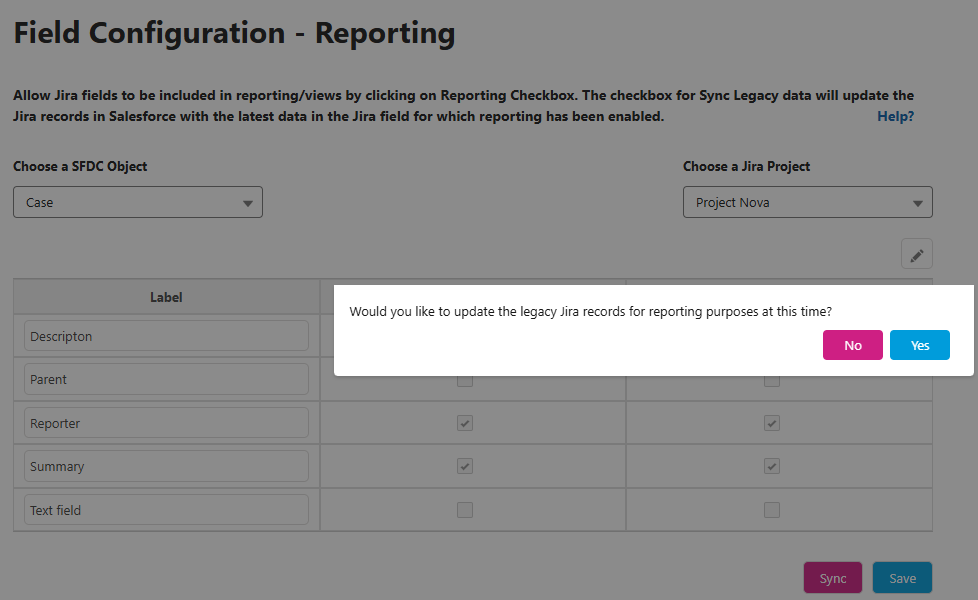
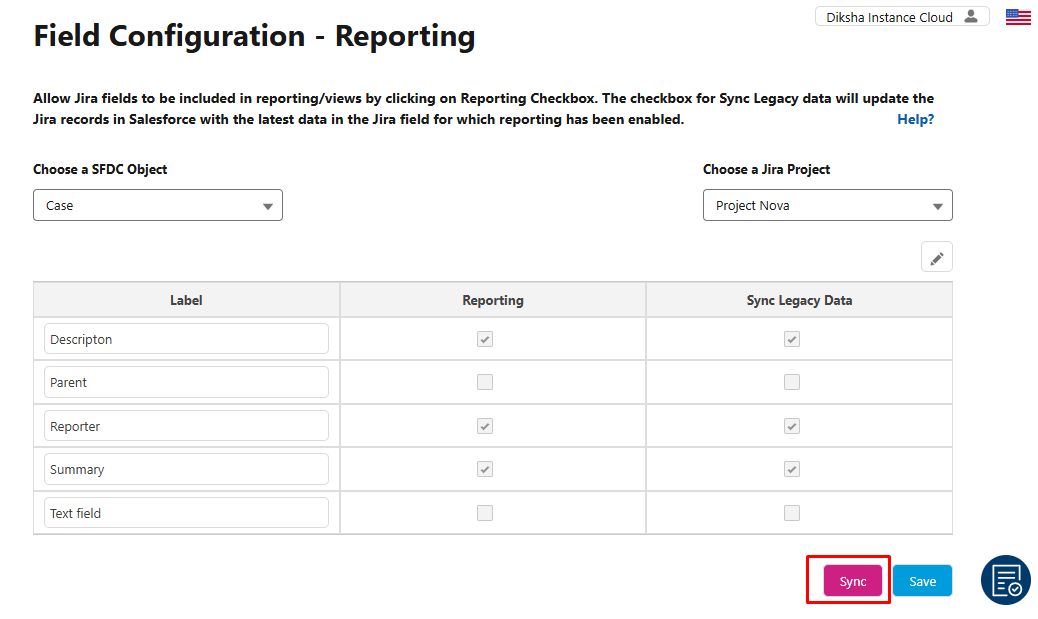
Step 5: Click on the Sync button to update legacy Jira records for reporting.
Note: The Sync button is available starting from the 6.55 release and is used for Automatic Batch Scheduling of reporting fields.