Feedback
Jira Related List Lightning Configuration Guide
Published Date: 28-09-2026
Read Time:
Overview
This document provides instructions for configuring the Jira Related List Lightning component in Salesforce. It covers:
-
Adding the Jira Related List Lightning component to a Lightning Record Page.
-
Sorting Records in the Jira Related List
-
Configuring the Order of Fields in the Related List
Adding the Jira Related List to a Lightning Record Page
Follow the steps below to add the Jira Related List Lightning component to a Salesforce Lightning Record Page.
-
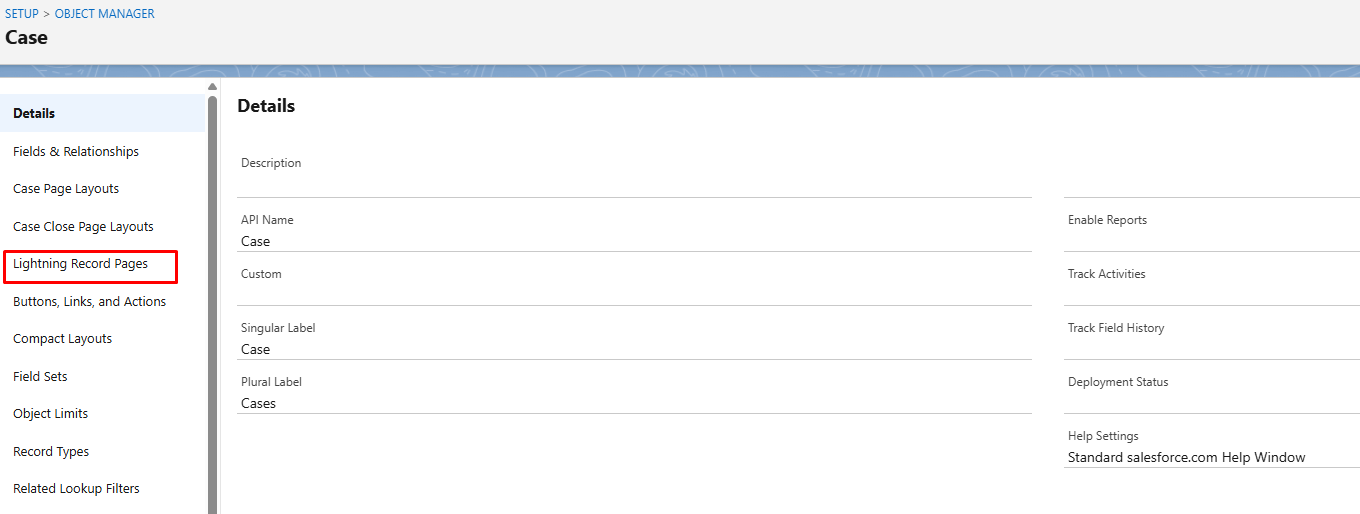
Navigate to the required object and select Lightning Record Pages.
-
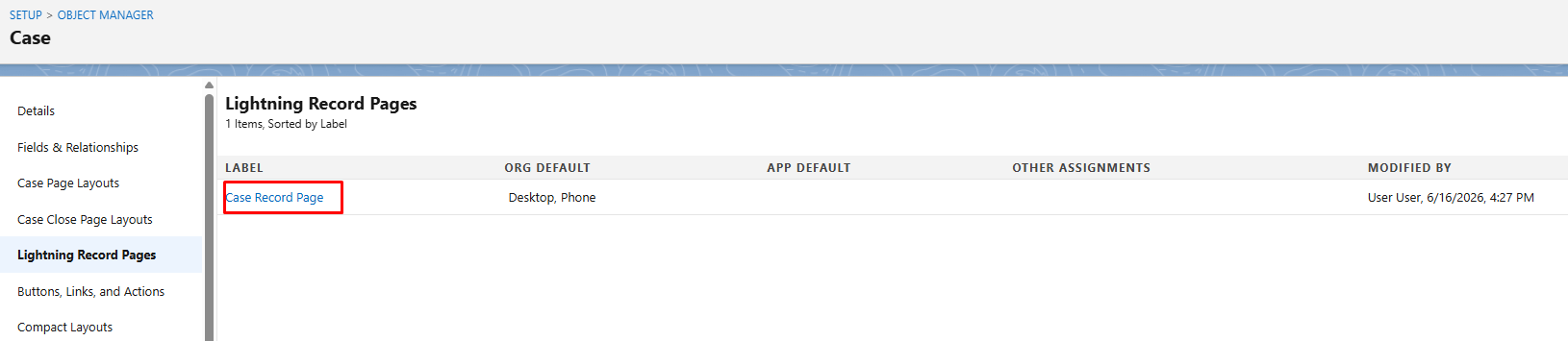
Open the Lightning Record Page where the Jira Related List needs to be displayed.
-
Click Edit.
-
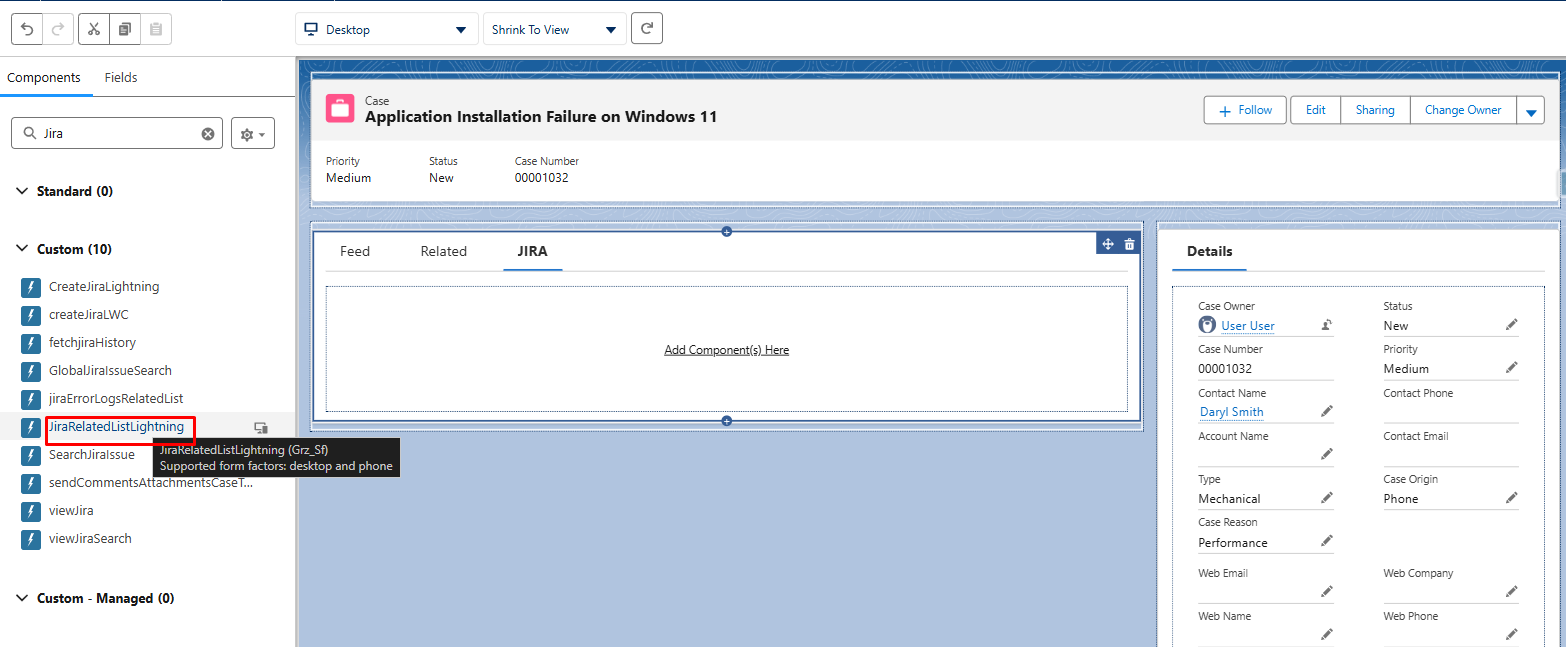
Search for JiraRelatedListLightning and drag the component onto the page. You can give the Tab name as per your business requirement.
Note: For optimal visibility and page organization, place the JiraRelatedListLightning component inside a dedicated Jira tab.
-
Adjust the component placement as required and click Save.
-
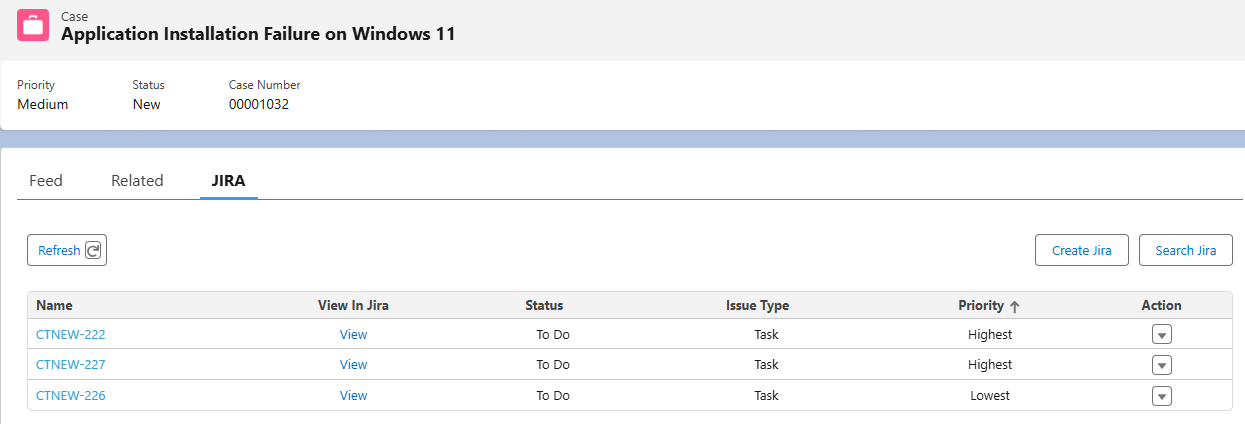
Open a record for the configured object. The Jira Related List displays the Jira issues associated with that Salesforce record.
Sorting Records in the Jira Related List
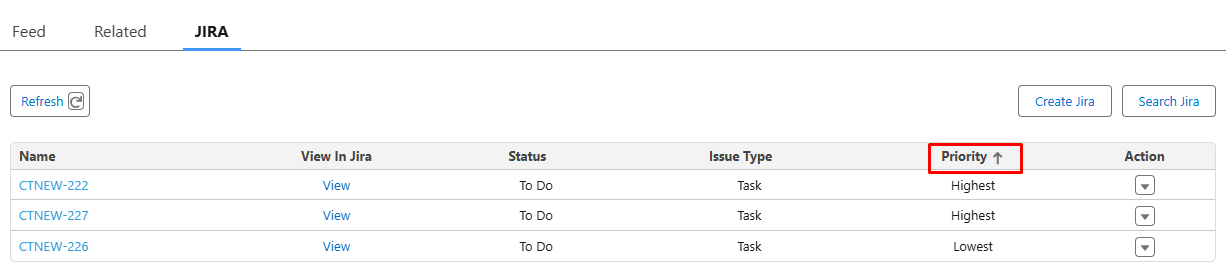
The Jira Related List supports sorting, allowing users to organize Jira records based on the information displayed in the list. This helps users quickly locate and analyze Jira issues directly from Salesforce.
-
Open a Salesforce record that contains the Jira Related List.
-
Locate the column that you want to sort by. Click the sort icon displayed next to the column header. The records are sorted based on the selected column. Click the sort icon again to toggle between ascending and descending order.
Configuring the Order of Fields in the Related List
Administrators can control the sequence in which Jira fields appear in the Jira Related List.
-
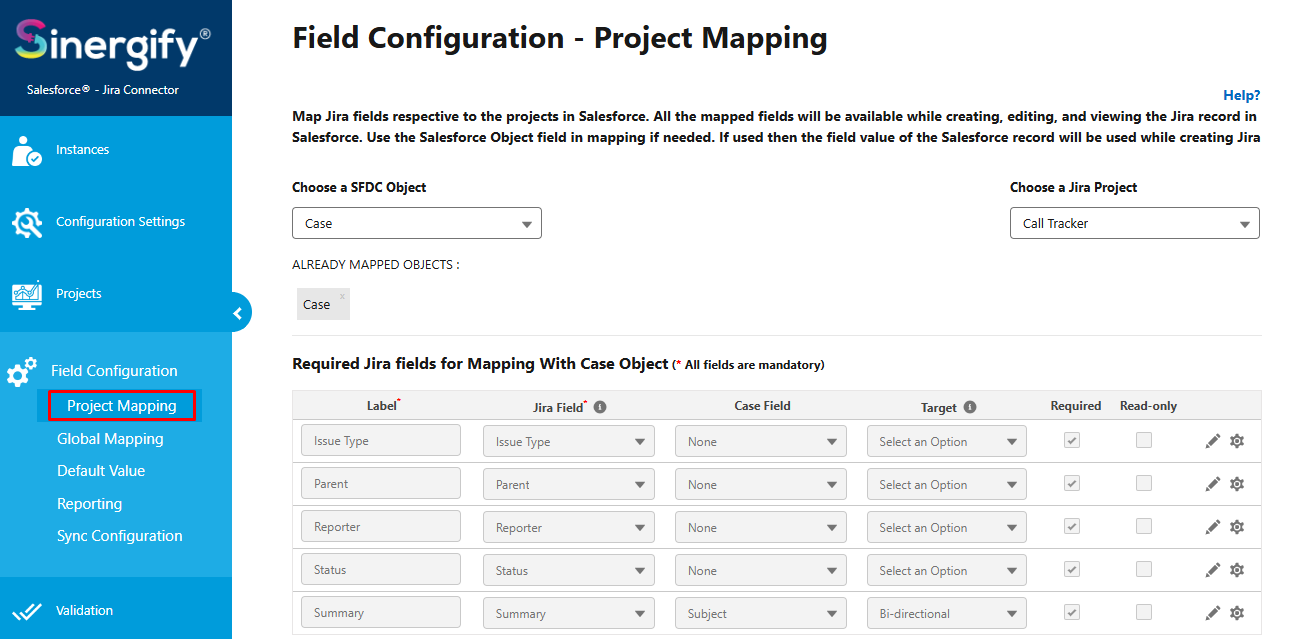
Navigate to Sinergify Admin Settings.
-
Select Field Configuration > Project Mapping.
-
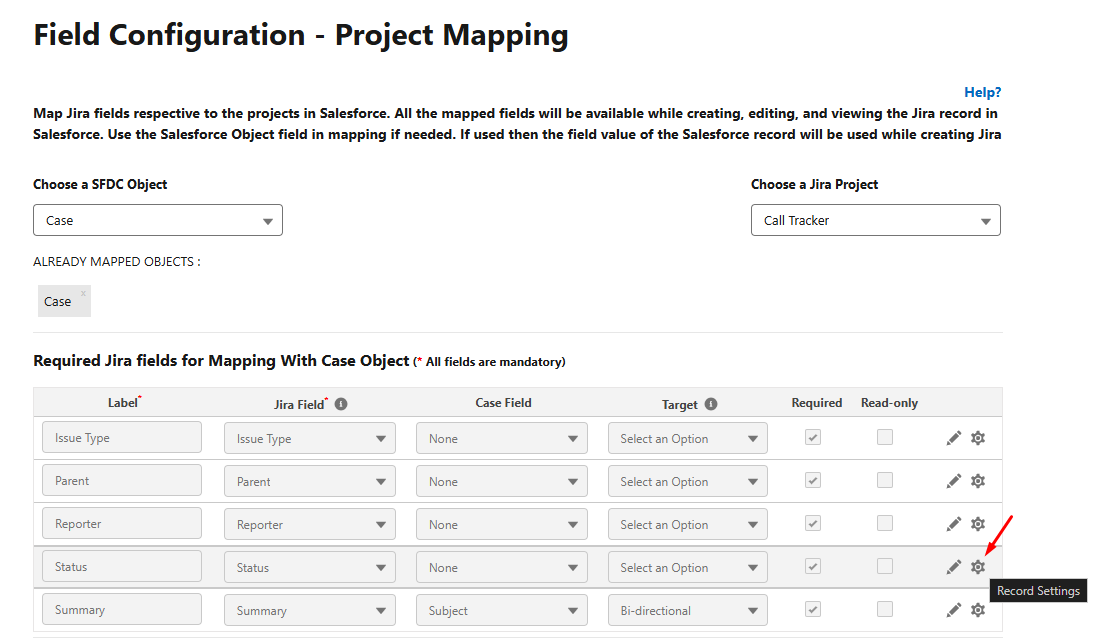
Locate the field whose position you want to modify and click the Gear icon.
-
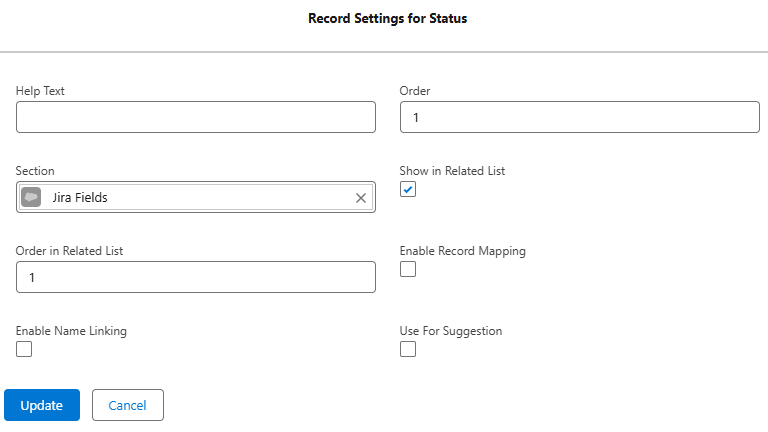
Enter the required value in the Order in Related List field.
-
Ensure that the Show in Related List is selected.
-
Save the changes.
The fields are displayed in the configured order within the Jira Related List.